

Checkout & conversion
Move to wishlist
Turns 'Add to wishlist' in the cart into a real 'Move to wishlist'.
At a glance
- The item moves to the wishlist
- And is removed from the cart straight away
- A tidy cart without extra clicks
Screenshots
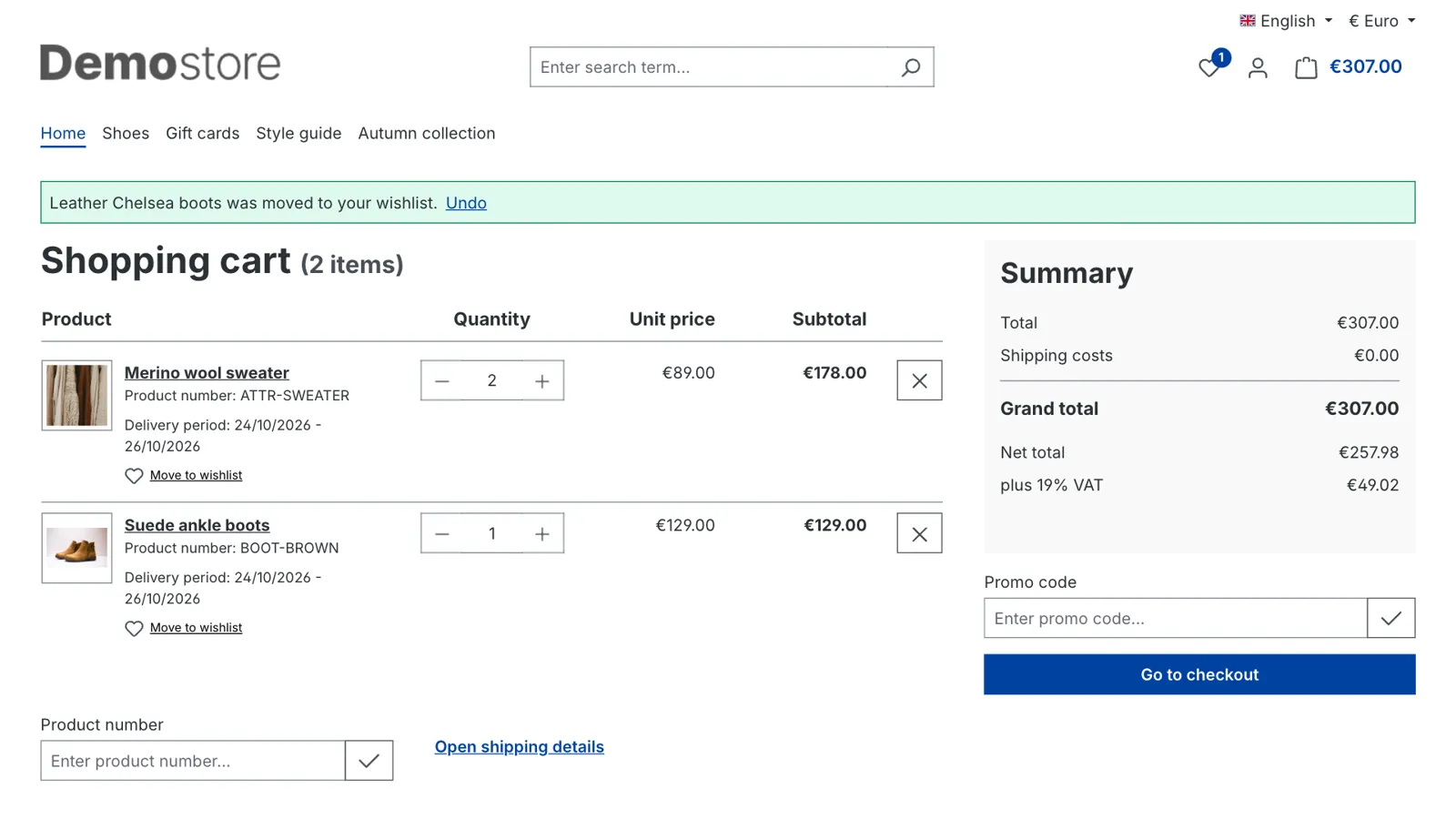
About Move to wishlist
Keep the cart for what customers will buy today
Many customers use the cart as a list of things they like. That makes checkout harder: the cart total looks higher than what they want to pay today, and the products they're not sure about are in the way. In Shopware, "Add to wishlist" in the cart keeps the product in the cart as well. This plugin turns it into "Move to wishlist": one click puts the product on the wishlist and takes it out of the cart. The product stays saved for later, and the cart only shows what the customer wants to order now.
Fast, without reloading the page
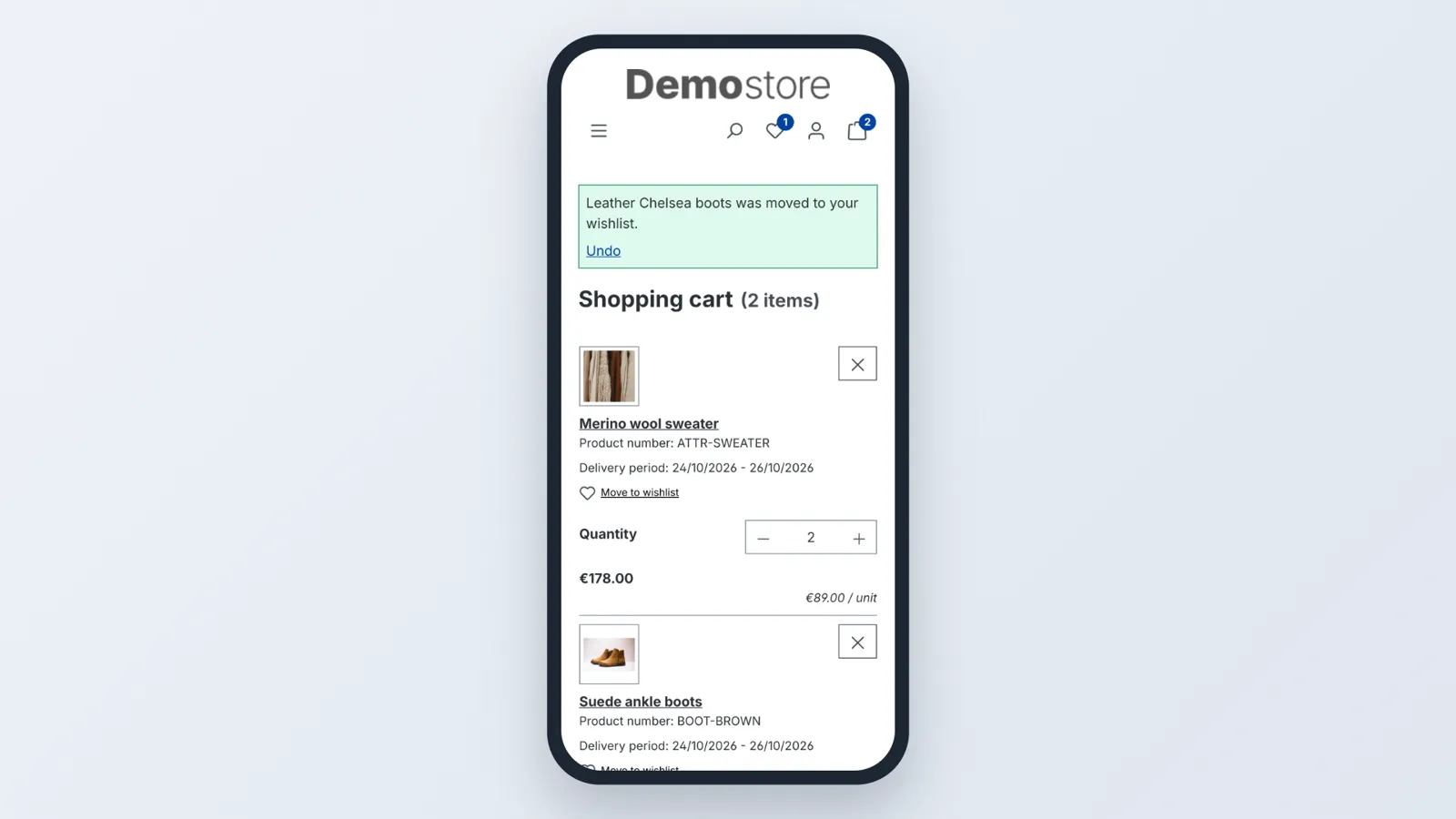
- The cart updates in place: the product disappears, the totals, shipping costs and the cart and wishlist counters in the header update, and customers keep their place on the page.
- A clear message confirms the move with the product name, for example "Leather Chelsea boots was moved to your wishlist."
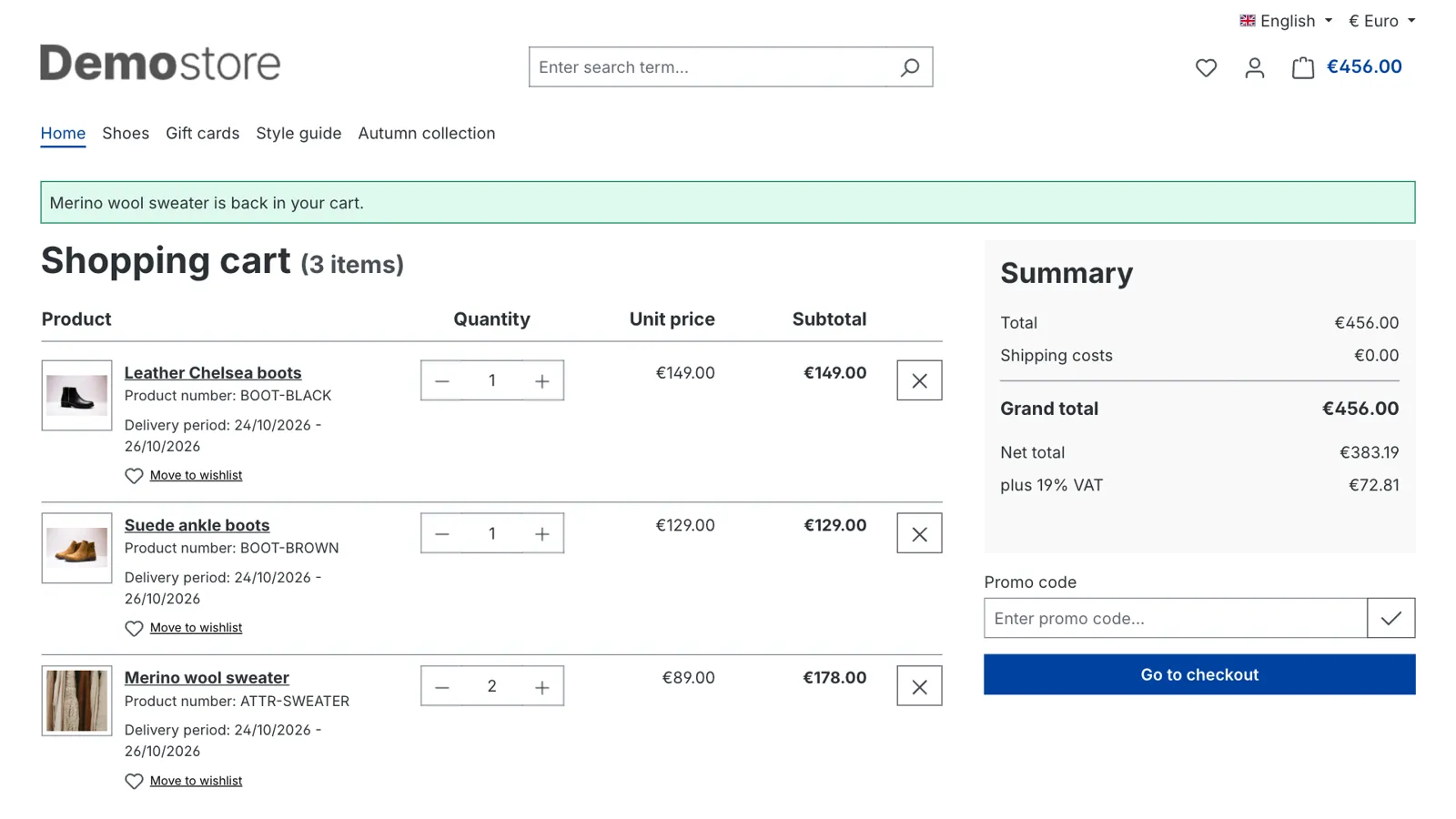
- Undo right in the message puts the product back in the cart, with the same quantity.
For customers and guests
Logged-in customers move products to their wishlist in their account. Guests use the wishlist Shopware keeps in their browser, so they can save products for later without logging in.
Works where it should
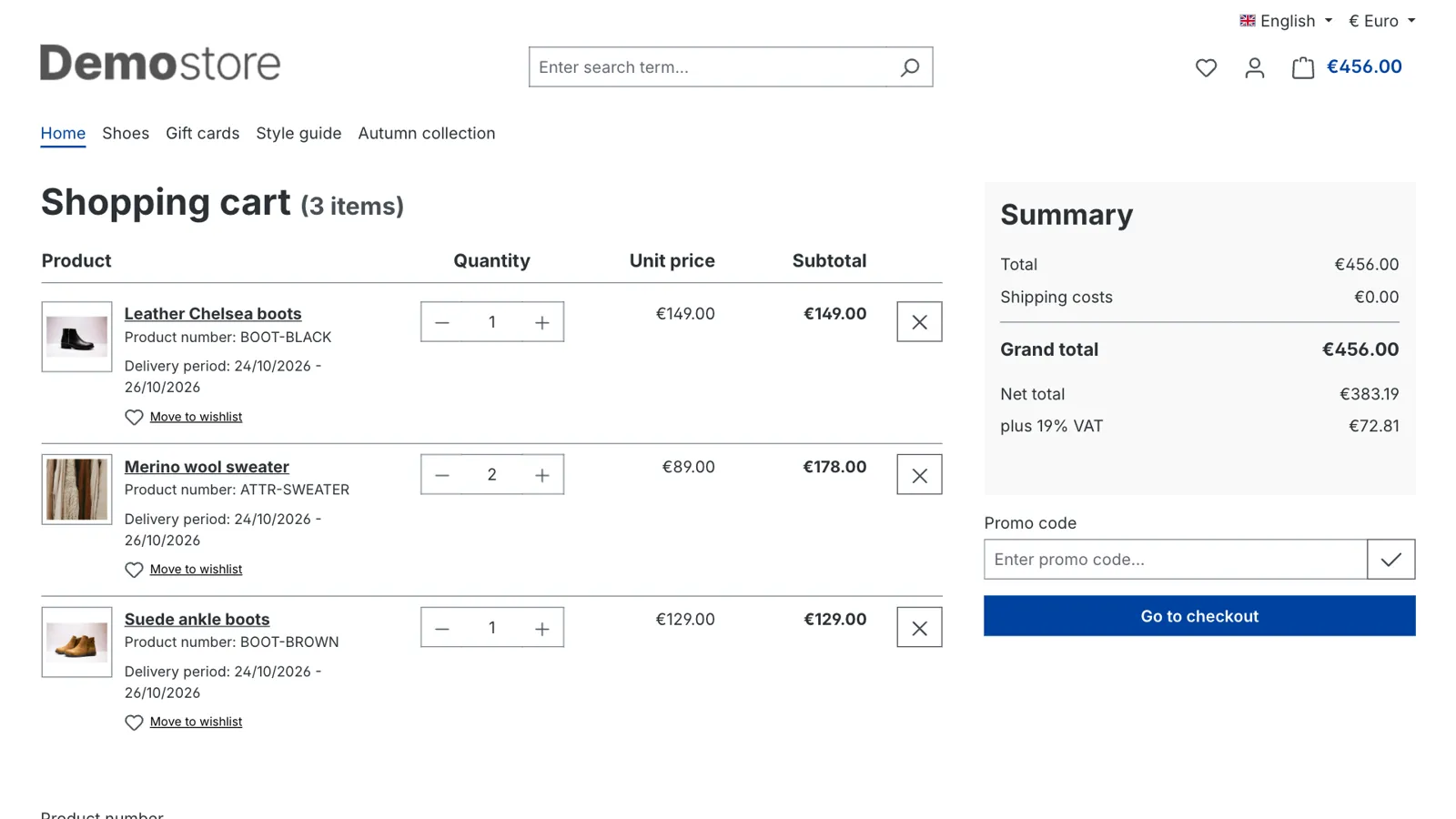
- On the cart page and the order confirmation page, for every product in the cart.
- Line items that can't be removed, for example added by a bundle or gift plugin, keep the normal "Add to wishlist" button.
- Other products on these pages, like cross-selling, are not affected.
Your choice per sales channel
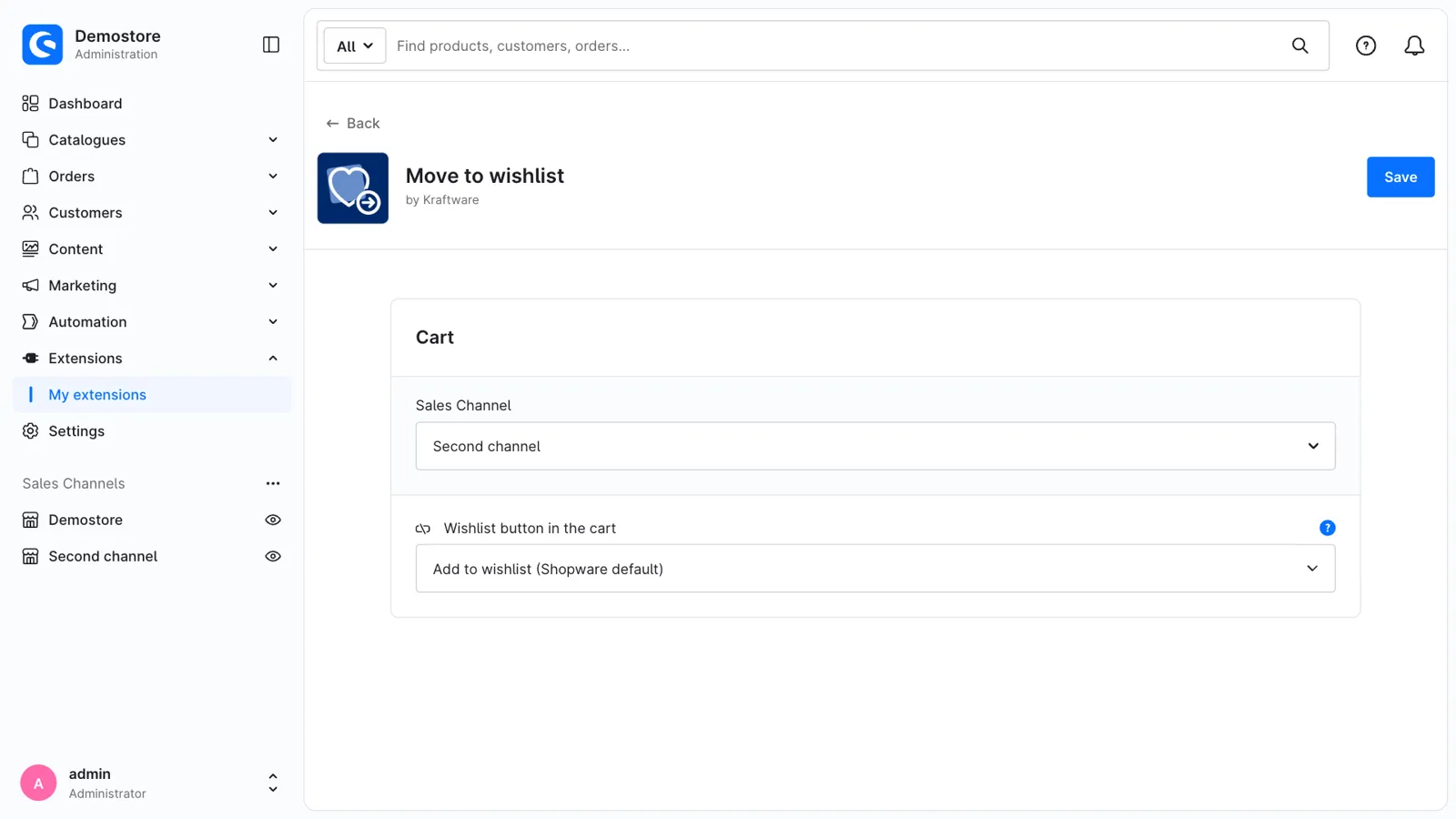
Choose in the plugin configuration whether the cart moves products to the wishlist or only adds them, as in Shopware by default. Every sales channel can have its own setting.
Accessible and translated
- Screen readers announce the message, and keyboard focus moves to the Undo button.
- Uses Shopware's own wishlist, heart icons and "Remove from wishlist" text, so it fits your theme.
- Available in English, German, Dutch, French, Spanish, Italian, Polish and Danish.
Support
Questions, ideas or something not working? Contact us through the Shopware Account ticket form. We read every message.
Get Move to wishlist for your store
Install it from the Shopware Store. A question along the way? You get an answer from the developers who built it.